Found a great cooking video on YouTube? Save it to Forkr in seconds. Whether the recipe is in the video description, the comments, or narrated on screen, Forkr's AI will pull out everything you need — ingredients, steps, and all.
Tap the Share Button
Browse YouTube and find a recipe video you'd like to save. Tap the Share button (the arrow icon) below the video player.
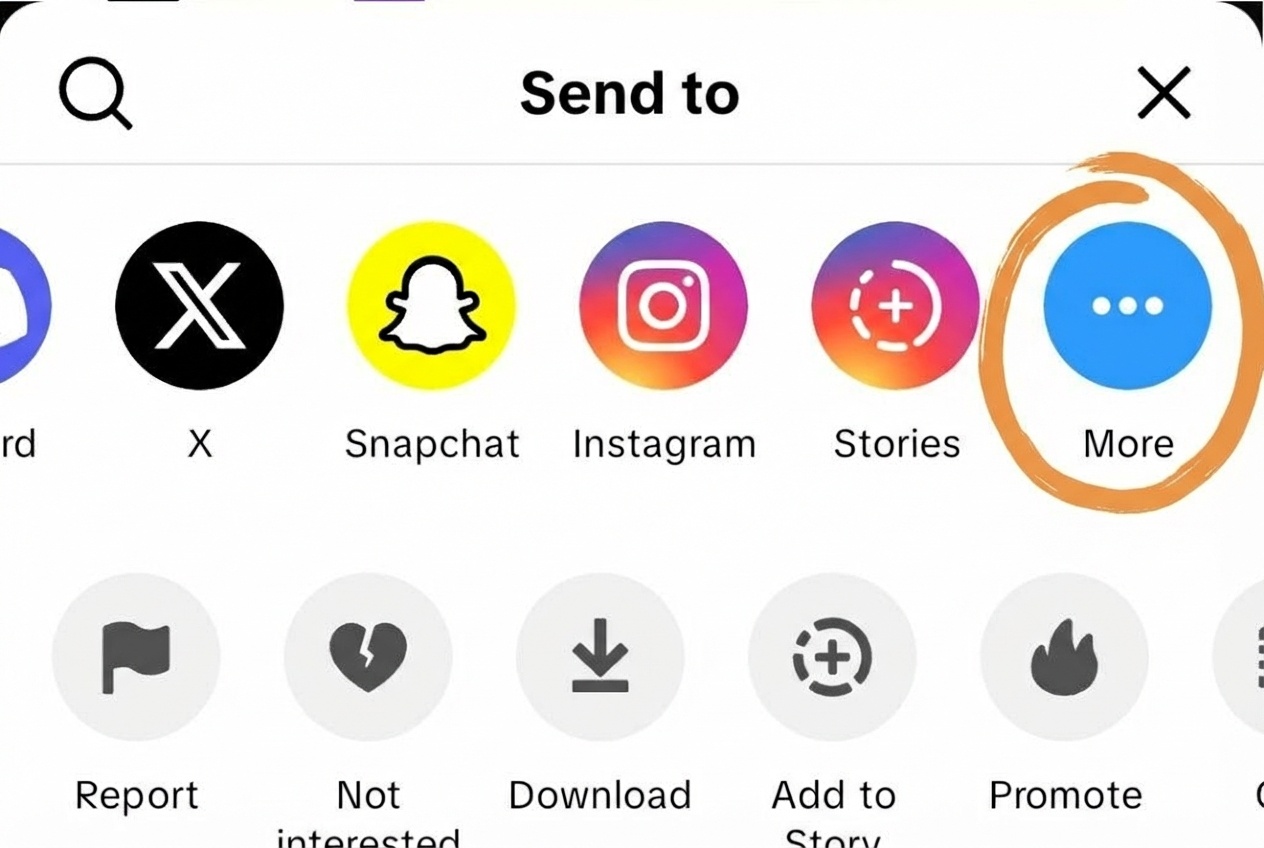
Tap the Share button below the video
Select "More"
In the YouTube share sheet, tap the More button (the three-dot icon at the end of the row) to open your device's full share options.
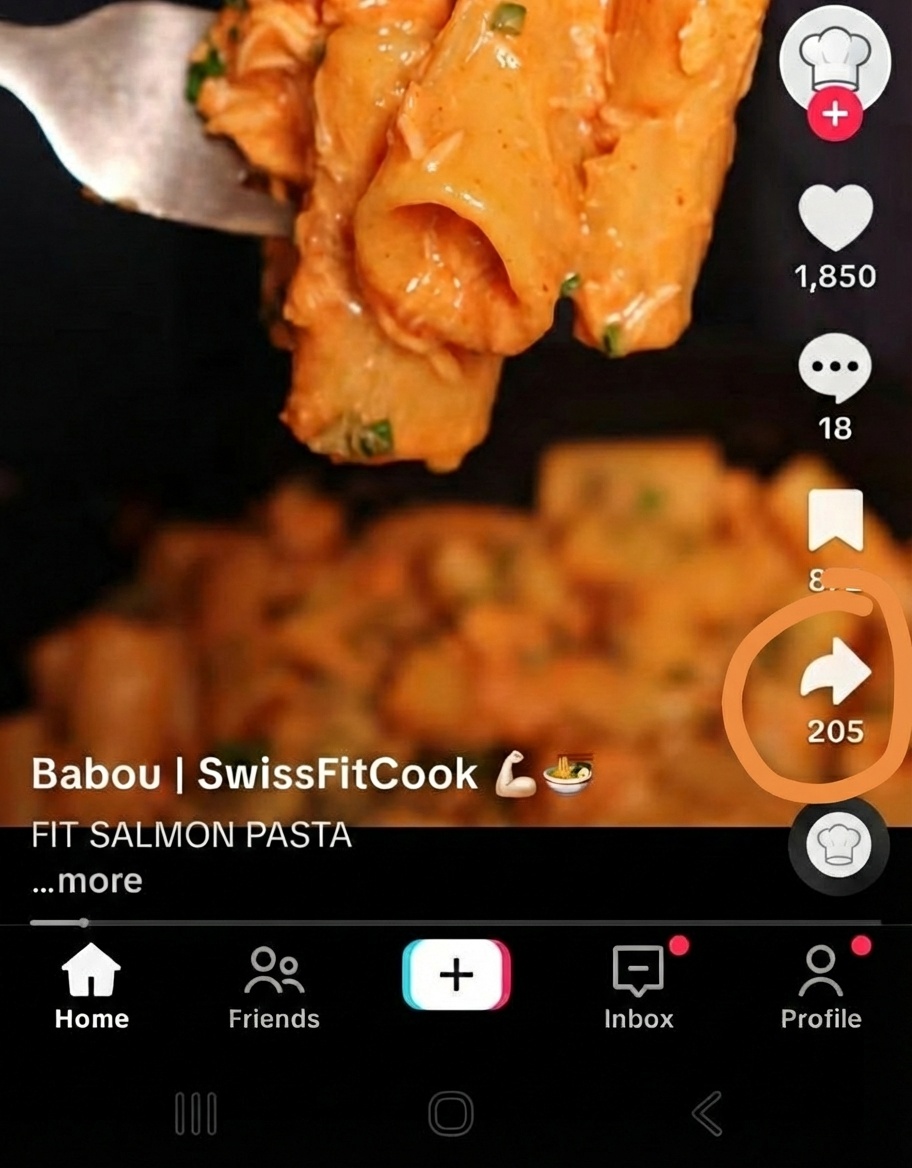
Tap "More" to see all apps
Choose Forkr
From the list of apps, select Forkr. The recipe will be automatically extracted and saved to your cookbook.
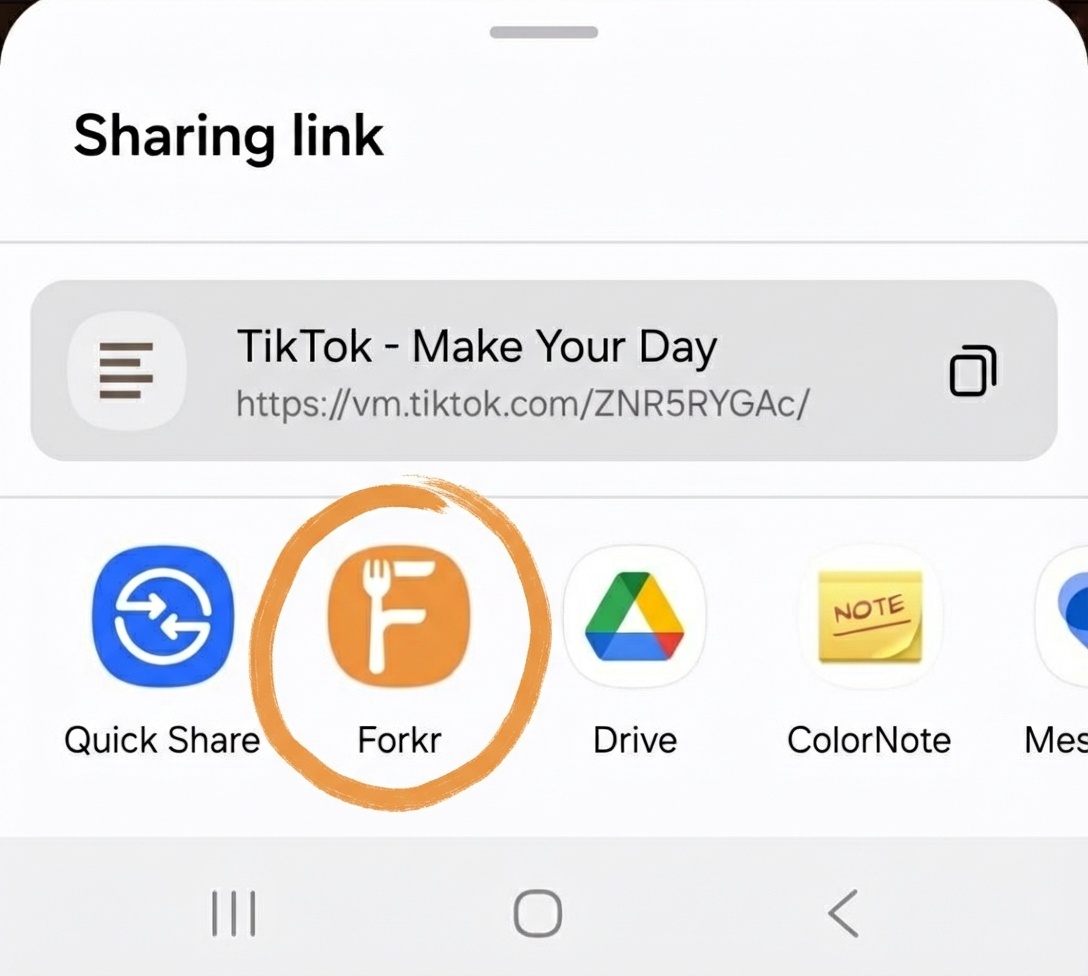
Select Forkr from the share options
If Forkr doesn't appear in your share options, you may need to add it to your shortcuts first. Learn how to add Forkr to your Android share shortcuts →
The recipe is now saved in your Forkr cookbook. You can access it anytime, even offline, add it to folders, generate shopping lists, and share it with friends and family.
Tips for Best Results
- Check the description: Many cooking channels include the full recipe in the video description — Forkr will find it there first.
- Pinned comments: Some creators pin the recipe in the comments section; Forkr can extract those too.
- On-screen text: Forkr can read ingredients and steps displayed as text in the video itself.
- Edit if needed: You can easily edit any part of the extracted recipe directly in Forkr.
Recipe didn't extract correctly? Make sure the video description or comments contain the recipe details in text form.
Forkr opens but nothing happens? Check your internet connection and that Forkr has the necessary permissions in your phone's settings.