Forkr makes it incredibly easy to save recipes from Facebook posts and videos. Whether the recipe is in a video, the post description, or shared from a food page, Forkr's AI will extract all the details you need.
Tap the Share Button
Browse Facebook and find a recipe post or video you'd like to save. Tap the Share button (the arrow icon) located below the post.
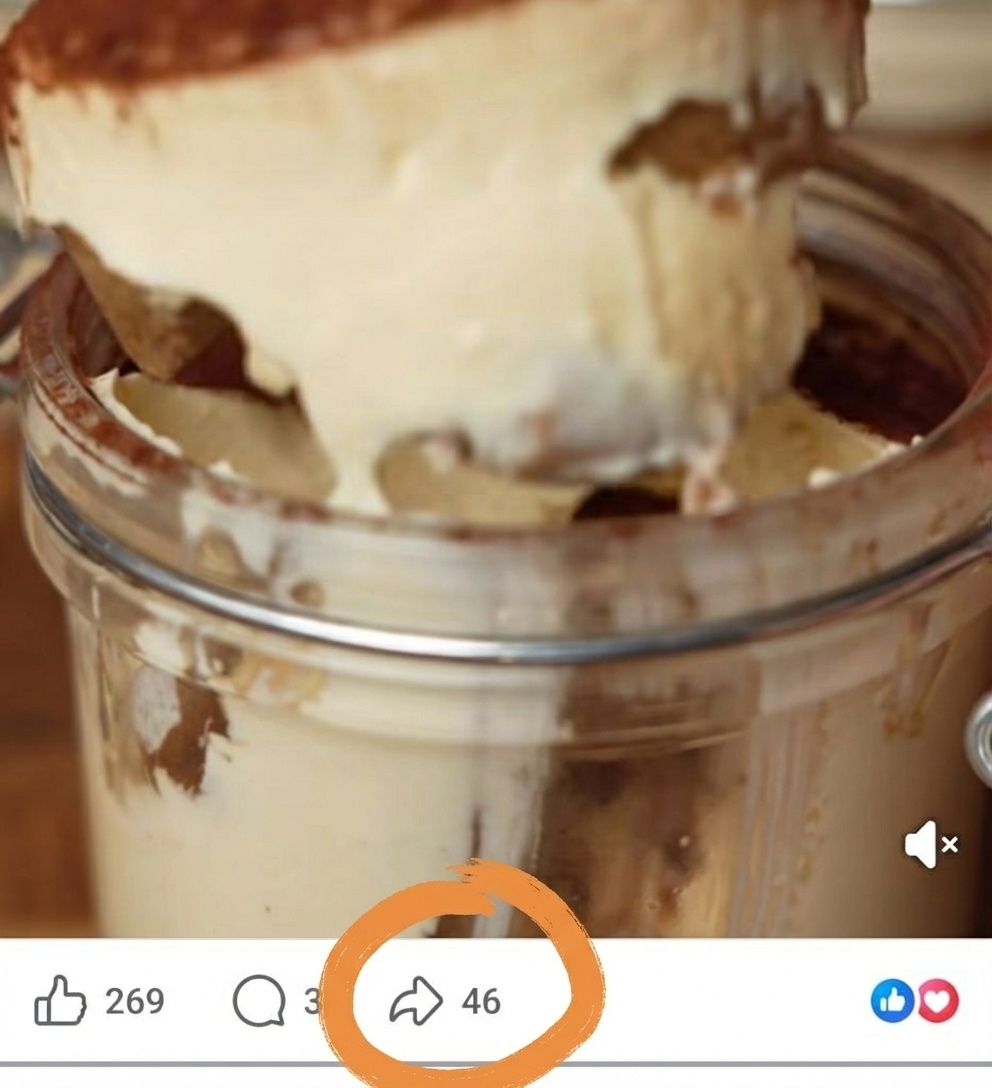
Tap the Share button on any Facebook post or video
Select "More"
In the "Share to" menu, tap the More button (three dots at the end of the row) to open your device's share sheet with all available apps.
Tap "More" to see all sharing options
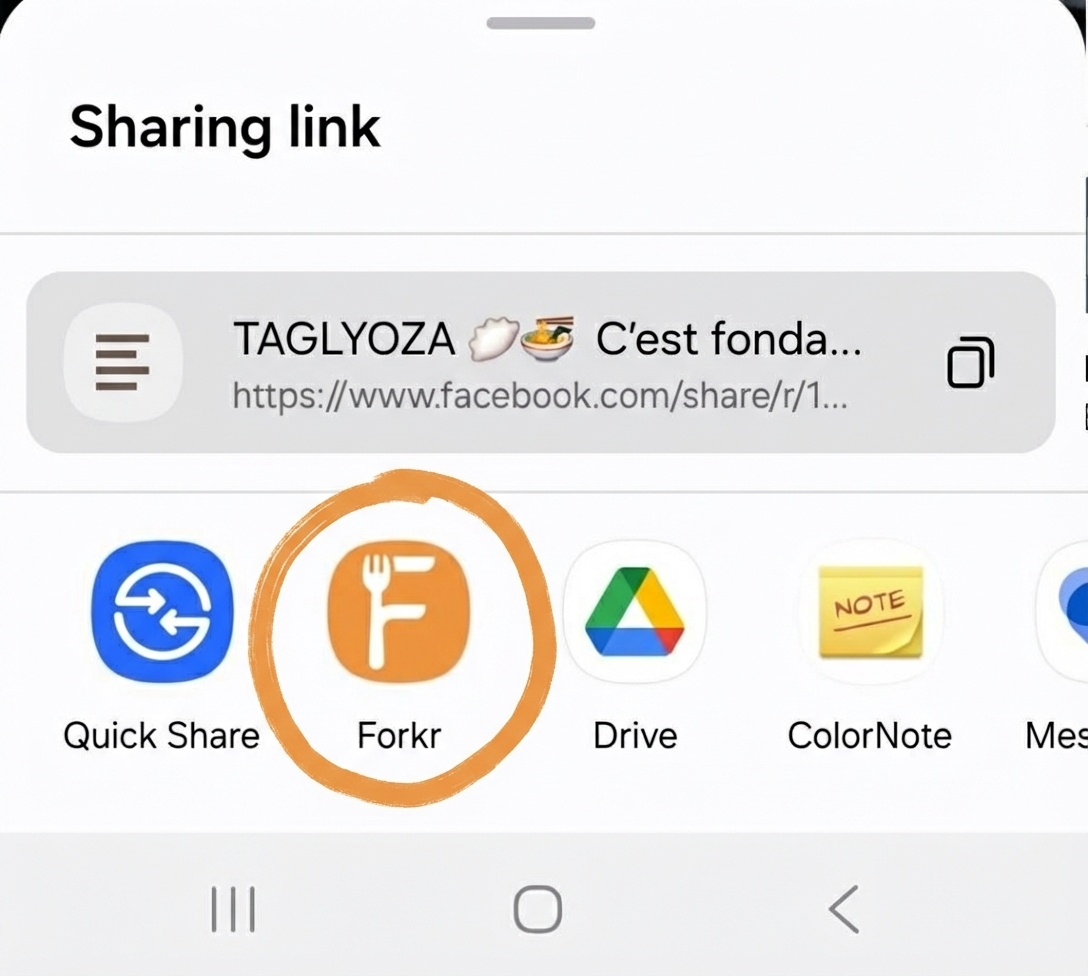
Choose Forkr
From the list of apps, select Forkr. The recipe will be automatically extracted and saved to your cookbook.
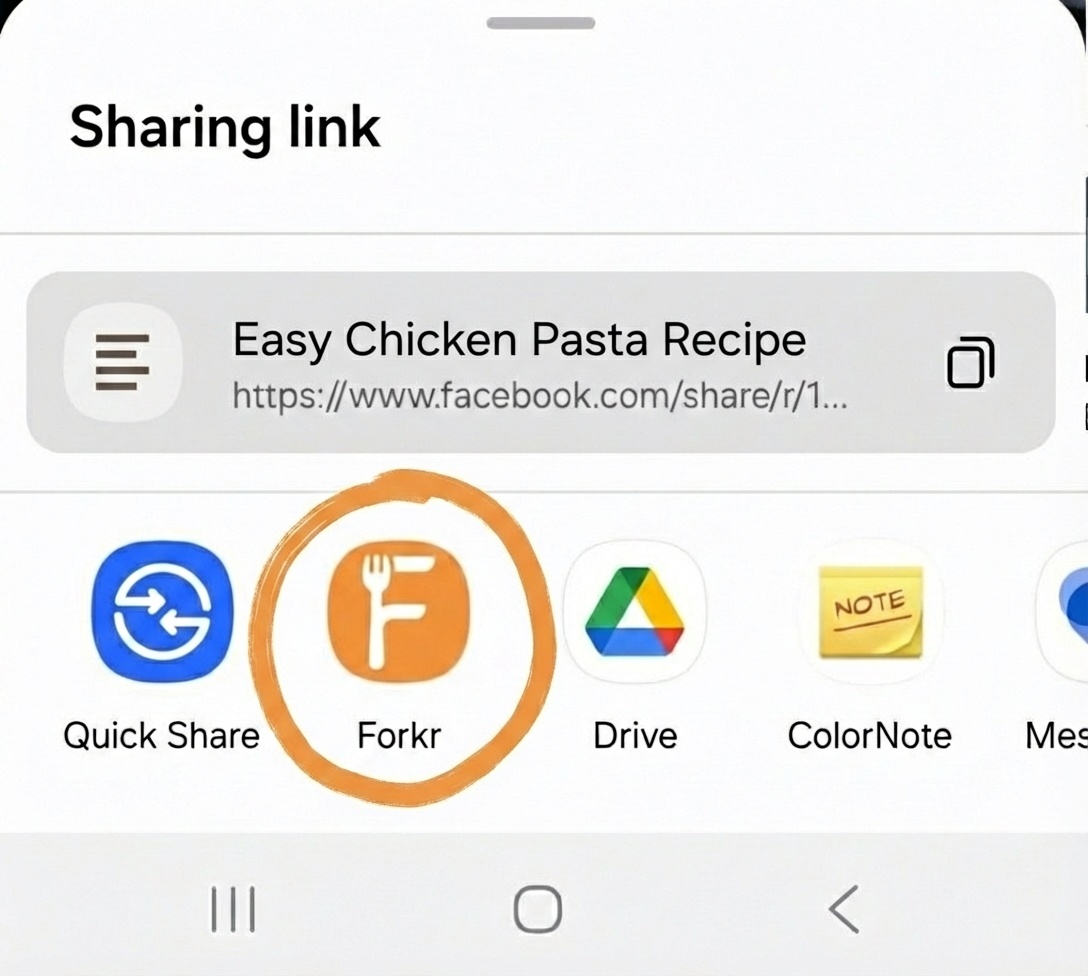
Select Forkr from the share options
If Forkr doesn't appear in your share options, you may need to add it to your shortcuts first. Learn how to add Forkr to your Android share shortcuts →
The recipe is now saved in your Forkr cookbook. You can access it anytime, even offline, add it to folders, generate shopping lists, and share it with friends and family.
Tips for Best Results
- Caption recipes work best: Forkr extracts recipes most accurately when they're written in the post caption.
- Video recipes: Forkr can extract recipes from on-screen text and audio narration.
- Check the source: After extraction, view the original Facebook post by tapping the source link in Forkr.
- Edit if needed: You can easily edit any part of the recipe in Forkr.
Recipe didn't extract correctly? Make sure the Facebook post contains recipe information in the caption or video.
Forkr opens but nothing happens? Check your internet connection and that Forkr has the necessary permissions in your phone's settings.